
For people who work with ChatGPT, Claude and Gemini every day
Every useful AI answer, where you can find it again.
drawerly gathers your AI conversations into one library. File them in drawers, clip the lines worth keeping and search everything, whichever AI you asked.
Start from the exports you already have. The Chrome extension is optional, and when a chat goes on you sync only the new messages.
Drawers
Client work4Writing2Code & snippets3Research2Personal1Unsorted0Clips6Unsorted0
Client work4
Pricing page copy for Oakline StudioChatGPTOct 9Kickoff questions for the Casa Liguori rebrandClaudeOct 8Email: declining a third round of revisionsChatGPTOct 3Warmer reply to Giulia about the deadlineChatGPTOct 1Moodboard brief for Casa Liguori labelsGeminiSep 20Client work · ChatGPT
Pricing page copy for Oakline Studio
For the line under the tiers, answer the real worry people have about custom work. Every piece starts as a drawing you approve, so the price you see is the price you pay.
Unsorted0
Client work · ChatGPT
Pricing page copy for Oakline Studio
For the line under the tiers, answer the real worry people have about custom work. Every piece starts as a drawing you approve, so the price you see is the price you pay.
The problem
Good answers don't stay where you can find them.
The decision from last Tuesday, the regex that finally worked, the email draft the client liked: each one sits somewhere in a long history, in one of three different AIs.
Buried in long threads
Chat histories are ordered by date, not by project. What mattered scrolls out of sight within days.
Split across three AIs
ChatGPT, Claude and Gemini each keep their own history, and none of them searches the others.
Rebuilt from memory
Prompts that worked, decisions you made and snippets you checked end up being written again.
How it works
From a chat to a clip you can find again.
Four steps, each one yours to take. Nothing is moved or filed without you.
Skip the walkthrough01Save the chat
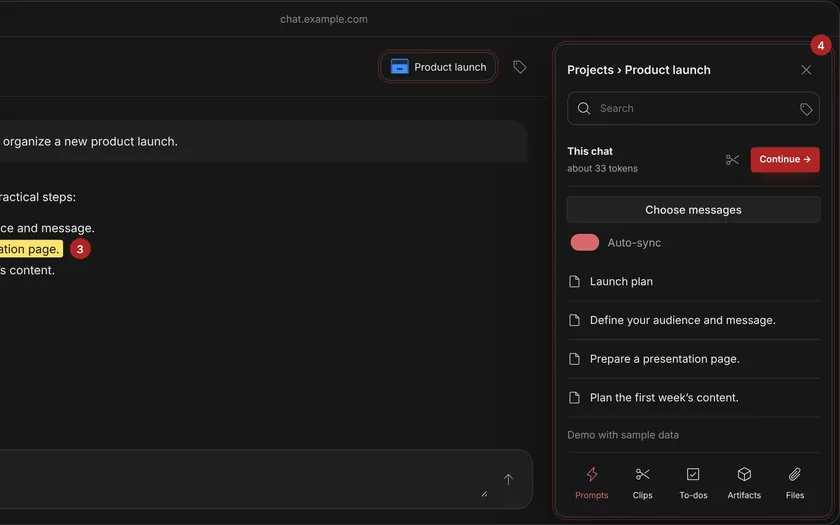
In ChatGPT, Claude or Gemini, the extension's Save the chat puts the conversation in your library, and you choose which messages to keep. Exports you already have can be imported too.
02Put it in a drawer
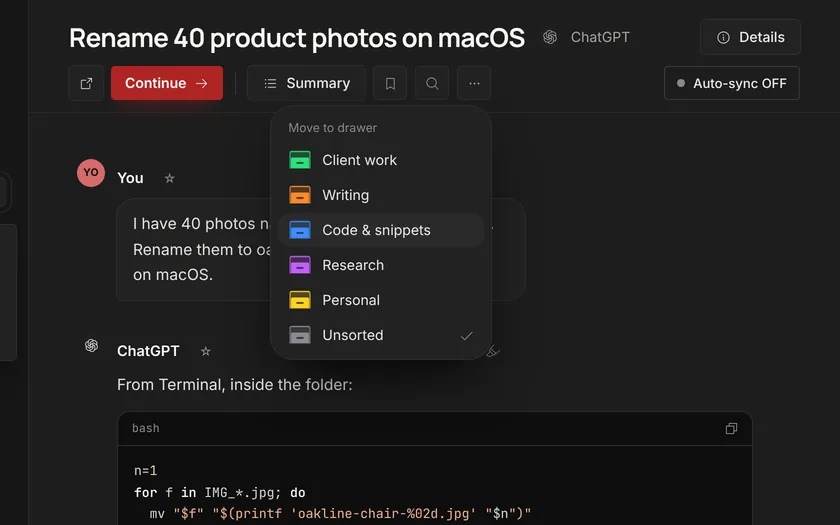
Open Move to drawer and choose the client, project or topic. You decide where each chat goes; rules you set up can add tags.
03Keep the part that matters
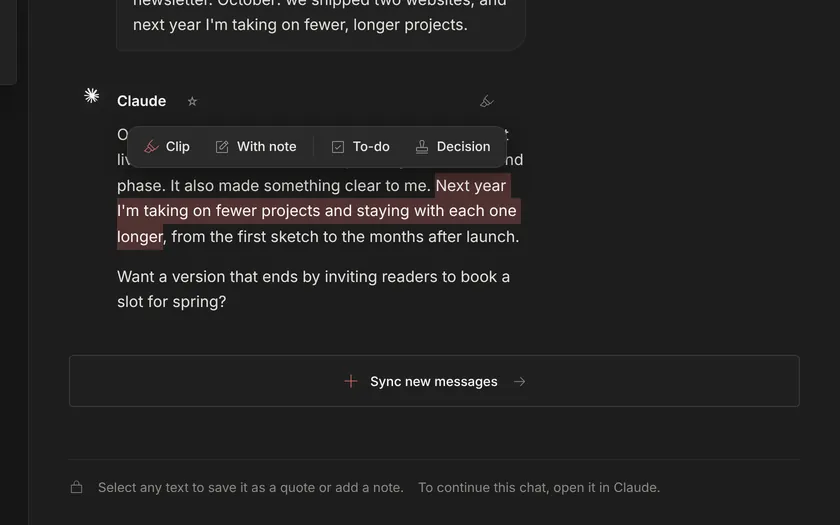
Select a few lines of the answer and keep them as a quote, a decision or a to-do, with your note beside them.
04Find it again
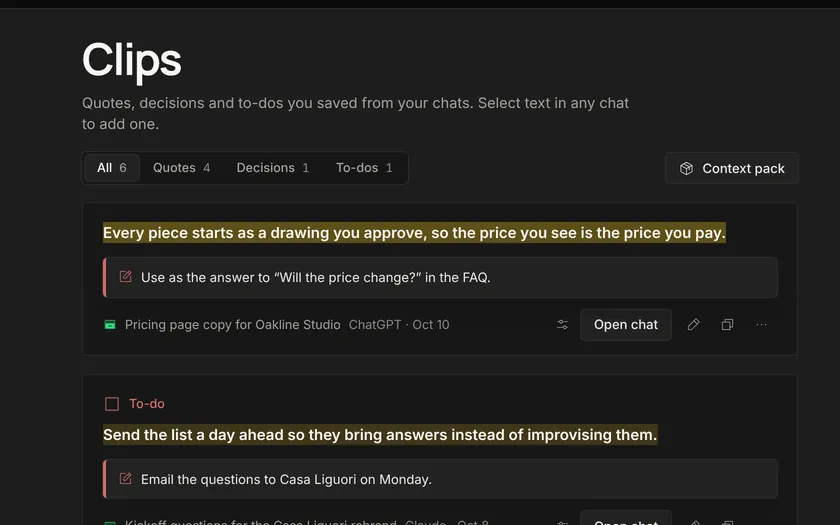
Search the whole library, every AI at once. The clip shows the chat and the drawer it came from.
The app
This is what you get.
Screenshots of drawerly 0.35 with its sample library, in English.
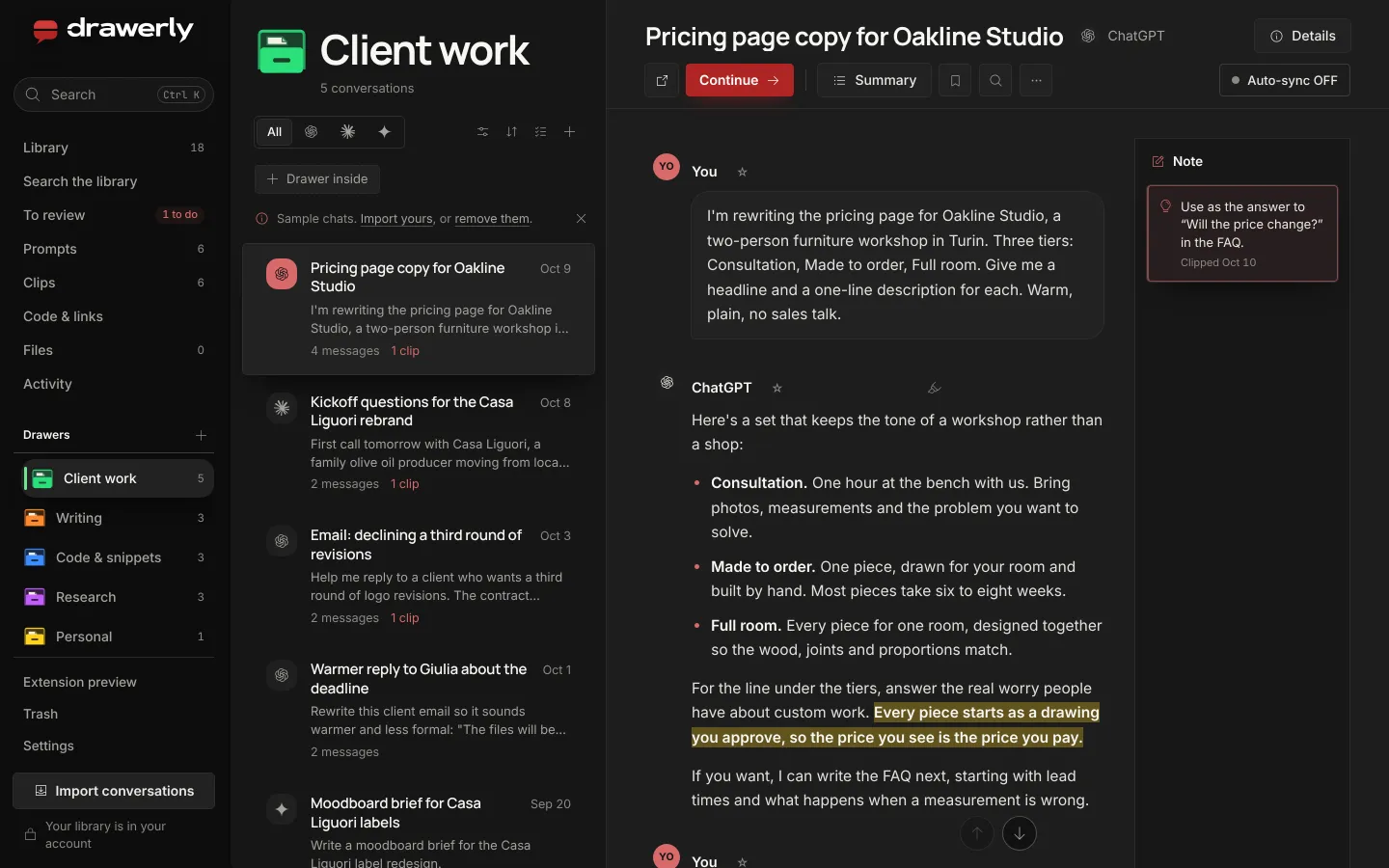
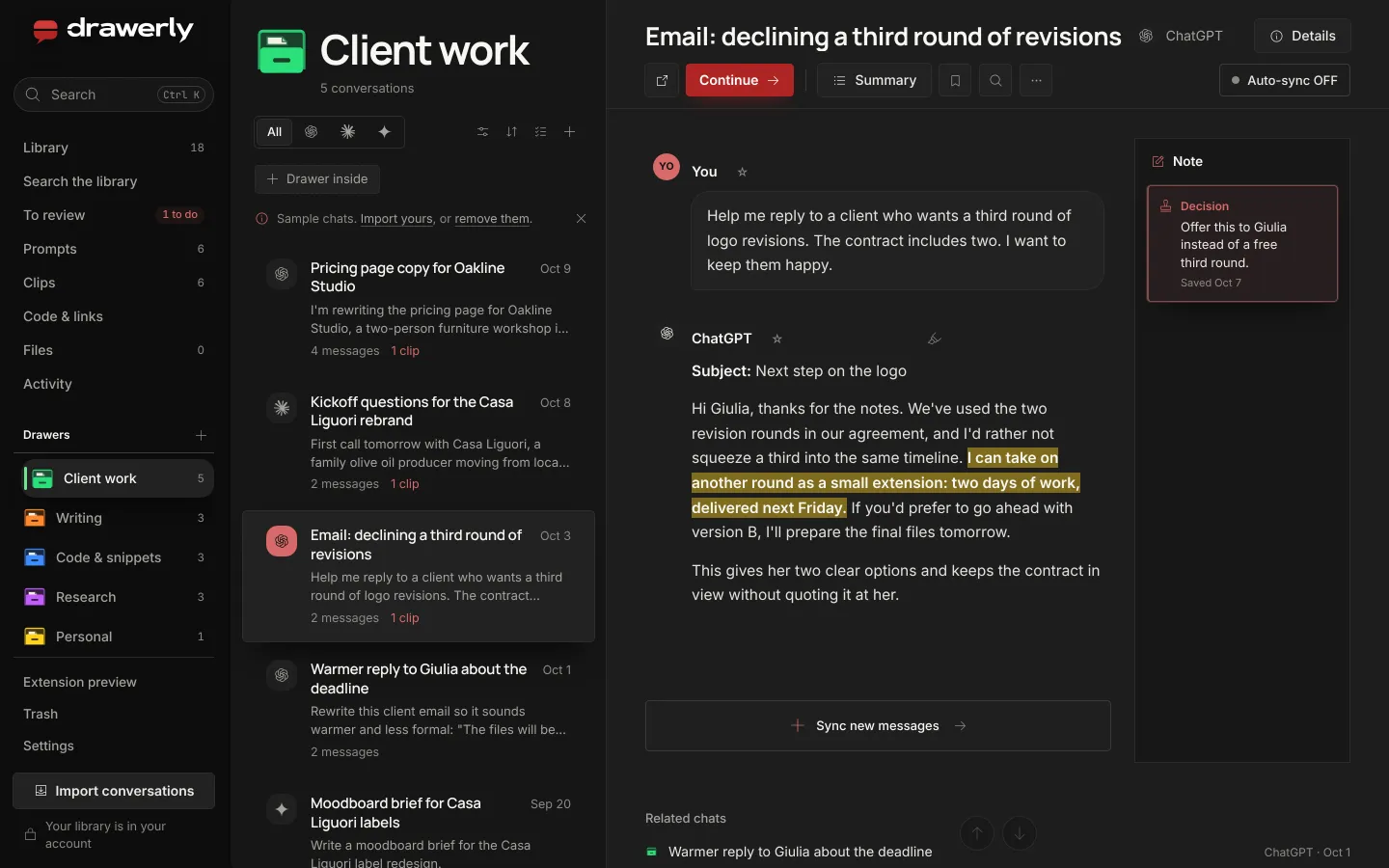
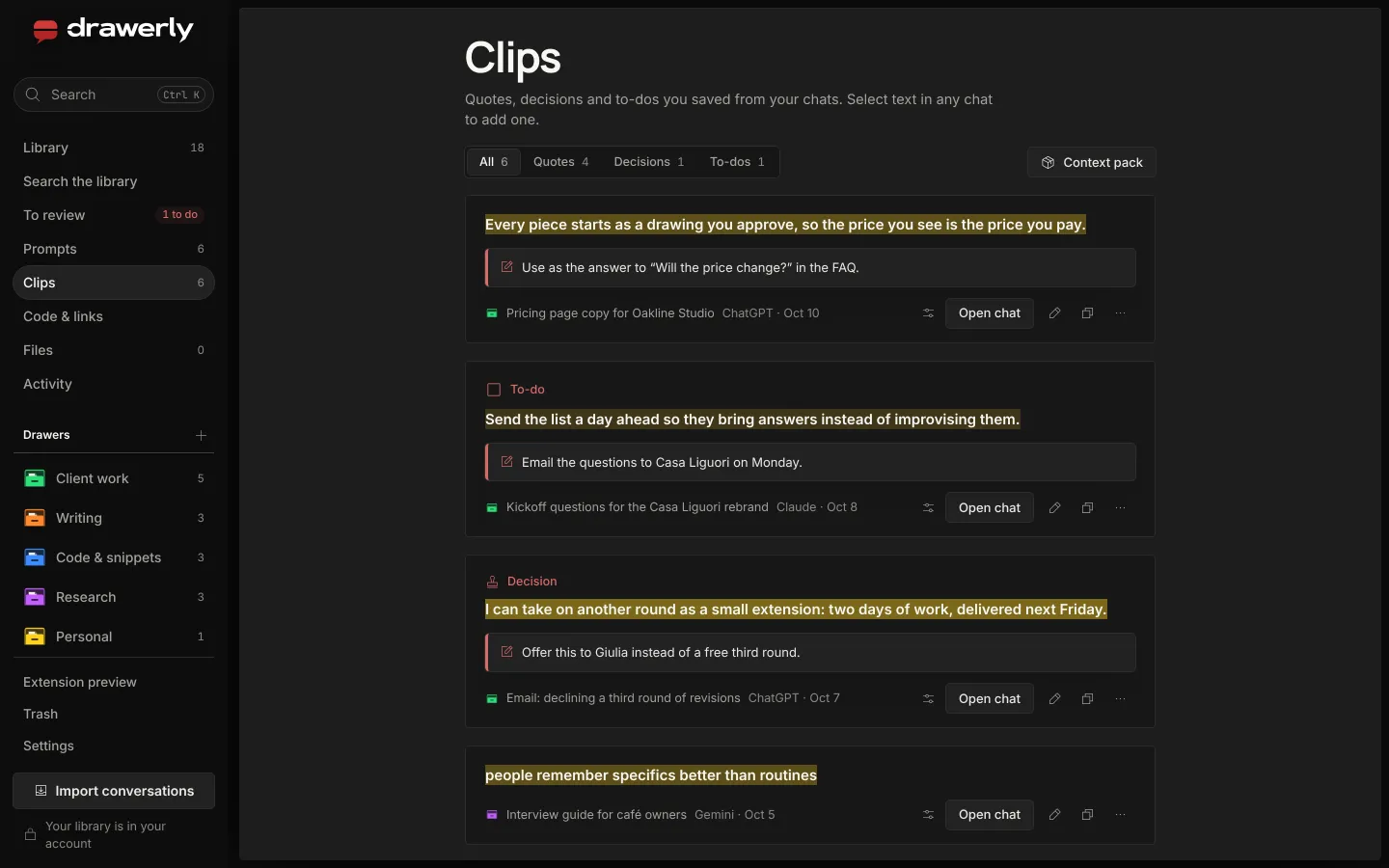
Drawers on the left, the chats of the open drawer, the conversation beside them.
Features
What's inside
Everything listed here is in the product today. Where a feature depends on a plan, a key or a setting, it says so.
Drawers and subdrawers
File chats in drawers up to three levels deep, pin the ones you use most and keep favorites.
Clips and margin notes
Select a few lines and keep them as a quote, a decision or a to-do, with a note beside them. All your clips wait on one page, sorted by type.
In the app, Clips carry a Pro mark: which plans include them is not final yet.
Search everything
Chats, notes, snippets, links and drawers from one search box, with ⌘K from anywhere in the app.
Import your history
ChatGPT exports (.zip, .json, .html), Claude exports and Gemini through Google Takeout. Take whole chats or only the messages you choose. Importing again adds only what's new.
Keep chats up to date
When a conversation goes on, add just the messages that came after, from the open page or a newer export. Earlier messages you skipped can come in too.
From the page it needs the Chrome extension. With Auto-sync on for a chat, new messages are added each time you open that chat.
Prompts and chains
Save prompts with variables, run them as step-by-step chains, and start from a collection of 60 ready prompts. The ones you used lately stay at the top.
Chrome extension
Your library, right beside the AI.
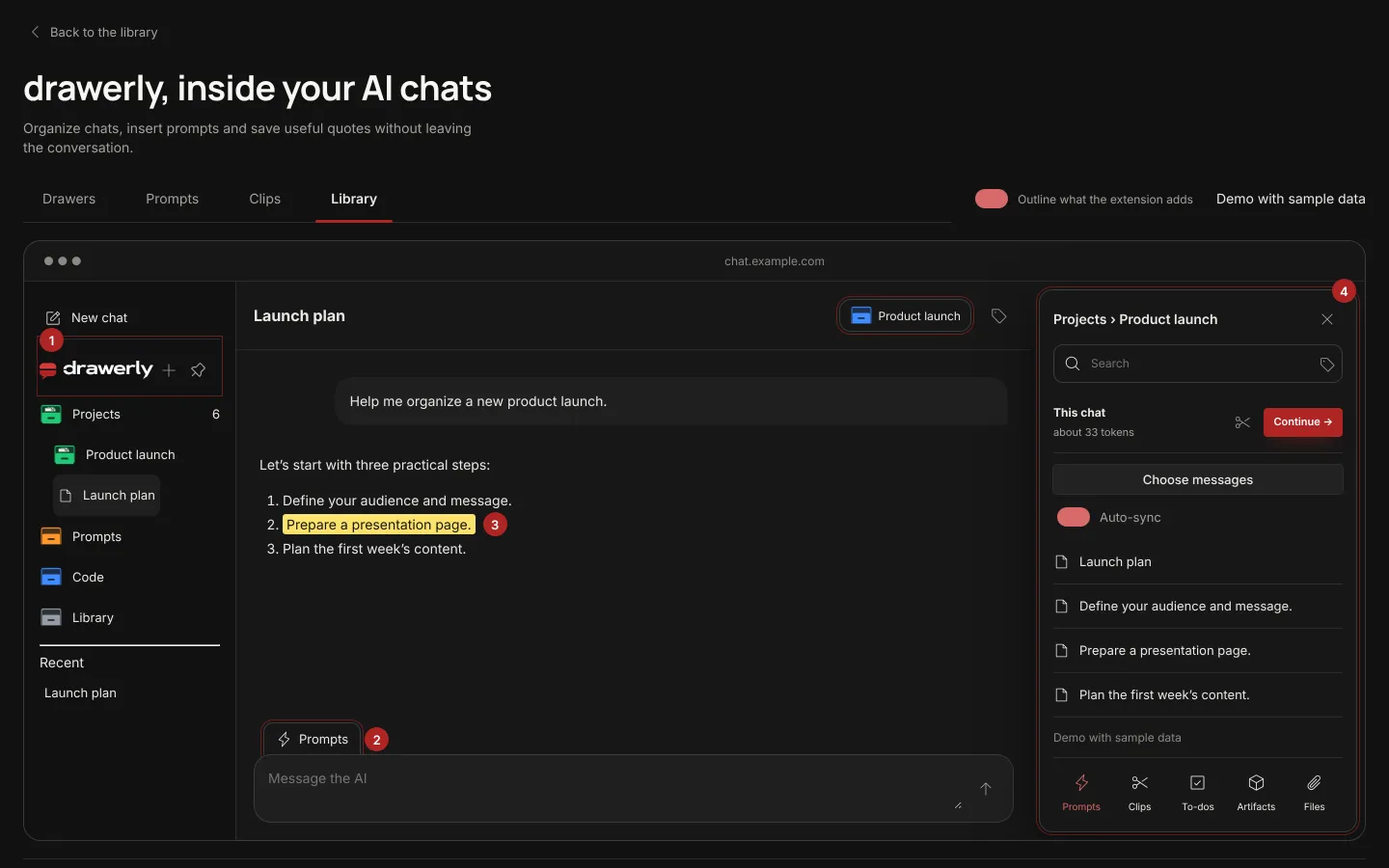
The extension brings your drawers next to ChatGPT, Claude and Gemini. Save the chat you're in, file it, reuse a prompt or search your library without leaving the page.
- Saves the chat you're in, or every chat you open if you turn on automatic saving.
- Opens your library in a card beside the conversation and in Chrome's side panel.
- Adds its own controls next to the page and leaves the AI's interface as it is.
Works on chatgpt.com and claude.ai. Gemini is available after you turn it on in the extension's Options.
The install link isn't published yet. It will appear here.
Plans
Three plans, one library.
Free costs nothing. The plans differ in library space and AI allowance, and the prices of Pro and Lifetime are not published yet.
Free
To get started with your first drawers.
Library space
200 MB
- AI tools
- With your own API key
- Price
- Free of charge
Pro
Monthly plan, for a library that grows every day.
Library space
10 GB
- AI tools
- 5 million tokens a month included, or your own key
- Price
- Not published yet
Not on sale yetLifetime
For a library you want to keep for good.
Library space
5 GB
- AI tools
- To be confirmed
- Price
- Not published yet
Not on sale yet
Space and allowance are the values set in the product today and may change. Payments are not open yet.
FAQ
Questions
Which AIs does drawerly work with?
ChatGPT, Claude and Gemini. You can import the exports of all three. The Chrome extension works on chatgpt.com and claude.ai, and on gemini.google.com after you turn it on in its Options.
Do I need the Chrome extension?
No. You can build your library from exports alone. The extension adds saving from the page and brings your library next to the chat.
Where is my library kept?
In your drawerly account, so it's the same on every computer you sign in on. Your browser keeps a working copy, which is removed when you sign out.
Can I take my data with me?
Yes. Export chats as Markdown, text or JSON, or download a full backup whenever you like.
How much does it cost?
Free costs nothing. Pro and Lifetime are paid plans, and their prices are not published yet.
Give your best answers a place to stay.
Create your free account and import your first export, from ChatGPT, Claude or Gemini.